Manage Export Templates
Export Data | Export Reports | Import Data
This information is applicable to the Export Templates dialog, accessed from the Export Data Wizard.
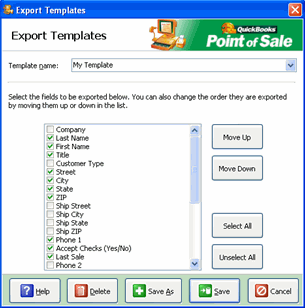
Use this window to review or change the way in which list data is sent to Excel when exporting. You can edit the default export template or create and save any number of custom templates for each data type.
To review or customize a template:
Select an existing template from the drop-down list at the top of the window. If you are creating a new template, you can select any existing template as the starting point.
In the list of available data fields:
Select or clear the check box next to a field to include or exclude it from the export respectively.
Use the Select All and Unselect All buttons to quickly select or clear the checkboxes for all fields.
Select a field and then use the Move Up and Move Down buttons to rearrange the order of fields. The field order, top to bottom, will correspond to the left to right order on the Excel spreadsheet.
Select Save to save your template changes with the same name or Save As to enter and save with a new name.
To delete a template:
Select the template from the drop-down list at the top of the window.
Select Delete.