Printing Price Tags from Price Manager
Price Manager Overview | Tag Printing Overview
When using Price Manger to change item prices or set up an automatic discount, you can print markdown, discount, or regular inventory price tags. Markdown and discount tags are a good way to communicate savings to your customers.
-
Markdown Tags: Includes both old (lined out) and new price. Available for price changes only. View Sample 
-
Discount Tags: (Pro) Includes the regular item price and the discount terms and price. Shown is a sample tag for a "X for $Y" discount type. Available for discount prices only. View Sample
-
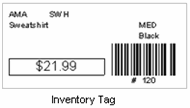
Inventory Tags: Includes the current item price only. This is the same as printing tags from your item list. Note that on a price change, this value will be different depending on the status of the price change. If Pending, the old price is printed since the new price has not yet been applied. If Applied, the tag will print with the new price. And if Restored, it will again print the old price. View Sample
To print tags in Price Manager:
-
Calculate a price change or set up an automatic discount and display the record.
If a price change is still pending, it is recommended that you select Items with New Price from the View drop-down list to ensure you are viewing all the items for which a new price has been entered.
-
If printing tags for only some of the included items, select them. How do I select just some items?
-
From the Print menu, select the tag type you wish to print.
-
Change options in the Print dialog as necessary:
-
Whether printing tags for all items or selected items.
-
The quantity of tags to print (the on-hand quantity or a specified number).
-
The tag template to be used. How do I select a template?
-
Select Print.
For additional information, read the basic tag printing instructions.