Style Grid Basics
Style Overview | Add a Style | Edit a Style | Style Templates
Pro
This information applies to the lower half of the Style window, displayed after selecting the Style button from an item record.
Style Grid Notes
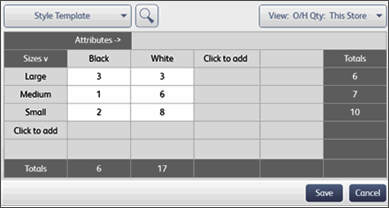
Each cell of the style grid containing a number (including zero) represents a unique item in inventory, with a unique size/color (or other attribute) combination. A blank cell means that attribute combination is not included in your inventory.
Though "size" and "attribute" is used when talking about styles in this help system, the grid axes will reflect the custom item labels you have defined in company preferences. Any item attribute can be used in a grid and placed on either axis, regardless of the labels. For example, your style items might vary by pattern or material rather than size or color.
The number of items that can be included in a style is virtually unlimited. You may have to use vertical and/or horizontal scroll bars to view the cells for all items in the grid.
If in Add or Edit mode, click the Click to Add labels to add a new size or attribute, then enter a zero (or the known on-hand quantity) in the cells corresponding to the new size/attributes combinations being added.
Grid Values
When accessing and viewing a style grid from your item list, the values displayed are the on-hand quantities of each style item.
(Multi-Store) You can view quantities for a specific store or the entire company by making a selection from the View: field at the top of the grid.
If you come to inventory from a document, such as a purchase order, and then display the style grid, you are in "item select" mode. In this case the style grid cells initially display zeroes (0). To select items and order quantities to return to your document, enter order quantities in the grid and then choose Select from the bottom toolbar.
Showing Totals on a Grid
The style grid contains the totals for all the sizes in each attribute (row), and each size (column), and a grand total for all items in the style. You can choose to show or hide these totals.
From the grid, right-click in any column or row label and select Show Totals to toggle the display on/off.
Navigating a grid:
|
Keyboard action |
Description |
|
<>, <>, <>, <> |
Move the cursor up, down, left, or right from one grid cell to another consecutively. |
|
<Page Up> |
Move the cursor to the first displayed cell of a column. |
|
<Page Down> |
Move the cursor to the last displayed cell of a column. |
|
<Home> or |
Move the cursor to the first cell in a row.
|
|
<Ctrl + Home> |
Move the cursor to the upper left cell of the grid. |
|
<Ctrl + End> |
Move the cursor to the lower right cell of the grid. |